
Managing seats and members in Dailybot
You must be an administrator in Dailybot to perform these actions.
In your subscription
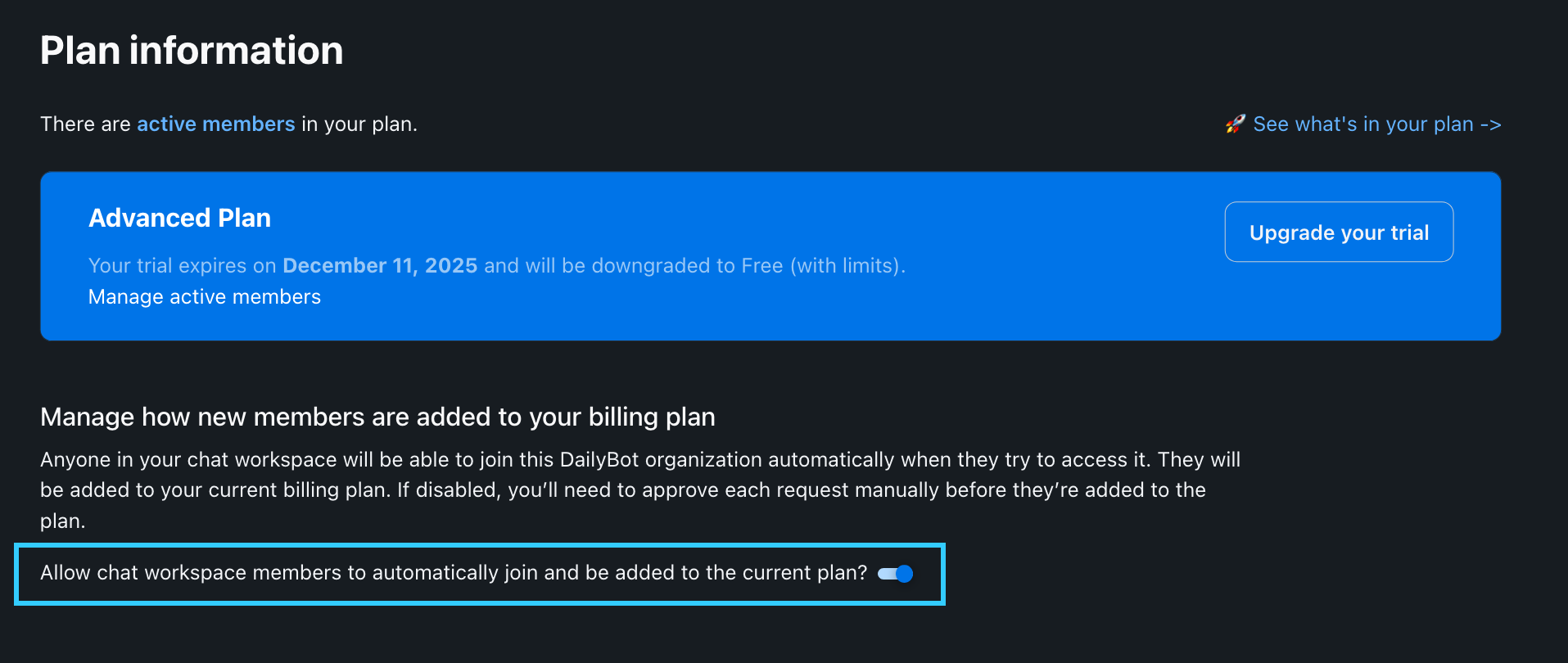
You can control how new people are added to your paid Dailybot organization using the auto-join setting.
If auto-join is enabled
Anyone from your chat platform can sign up to your Dailybot organization. As soon as they join, they become an active user and will count toward your subscription.If auto-join is disabled
An Org Administrator must approve new members before they become active and start counting toward your plan.
This setting lets you decide who can join your paid organization and helps you keep your license usage under control.
About Enterprise plans
Enterprise plans typically use custom pricing and billing terms defined in your contract (usually starting at 50+ licenses purchased in advance).
If you’re interested in Enterprise options or have questions about your current agreement, reach out to us at support@dailybot.com.
Managing users in your organization
Adding members to DailyBot
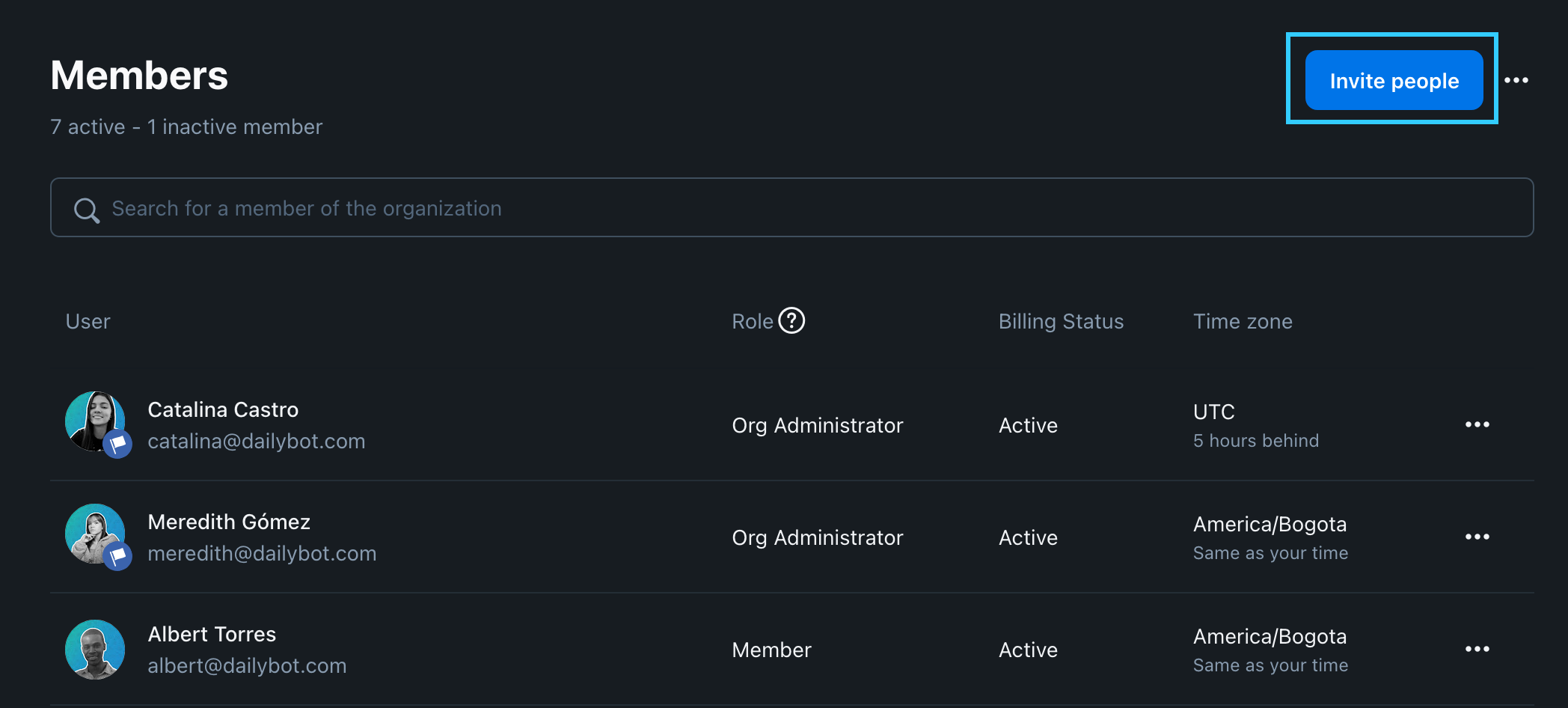
Go to Members (Settings > Members) to add new members to the organization as a whole, or go to the Teams (Settings > Teams) tab and open a specific team's members section to add them to that team. Use the text input to search for the user you want to invite to the organization or team.
About default teams
When users join your organization by themselves, i.e. using the Slack connect button, and the organization has the autojoin option ON, they'll automatically join to your current default team (you can change what your default team is in Teams).
Approving new users
If your organization is under a paid plan, you have the option of moderating new team members by disabling autojoin (Settings > Plan > Allow members to auto-join plan).
This way, org admins will get a notification on the web app (navbar) and by email when new users join.
What “deactivating a user” means
Dailybot uses soft deletion for members:
We don’t fully erase the user record, so you keep access to their historical data (check-ins, reports, and other activity).
A deactivated user can’t log in, won’t see any information, and won’t be counted for billing.
You can reactivate the user at any time if needed.
⚠️ Important: Removing or deactivating a user in your chat platform does not automatically deactivate them in Dailybot. You must do this from the Dailybot dashboard.
How to deactivate a user
Log in to the web dashboard as an admin.
Go to Settings → Members.
Find the user you want to deactivate (you can use the search box).
Click the ⋯ (three dots) icon next to their name.
Select “Deactivate member”.

Once deactivated:
The user loses access to Dailybot and their data.
Their seat is automatically removed from billing, while their past reports and activity remain available to your team.
Deactivating users from a team
If you just want to deactivate a user from your organization (and therefore from all teams):
Go to Organization → Members.
Find the person’s name.
Open the three dots menu.
Click “Deactivate member”.
If you’re an Org Administrator and want to remove yourself, first assign Org admin permissions to another user so they can keep managing the account and deactivate you afterward.
Fully deleting an account
Recommended: ask an Org Admin to deactivate you
In most cases, the best option is to ask your Org Administrator to deactivate your account. This removes your access while preserving your historical contributions, so your team doesn’t lose context or previous work.
Hard deletion (erasing your data)
If you really need all of your user data removed from the platform:
Send a request to support@dailybot.com from the email associated with your account.
Our team will process your deletion request within 48 hours (2 business days).
Once completed, your user data will be permanently removed according to our data retention policies.