
Edit an existing form
Before you start
You must be the owner of the form or an admin in your organization.
Editing a form does not delete or modify past submissions.
Structural changes (like editing question types) may affect future automation or workflows linked to the form.
Edit a form from the Automations Forms section
Log in to the Dailybot web dashboard at https://app.dailybot.com
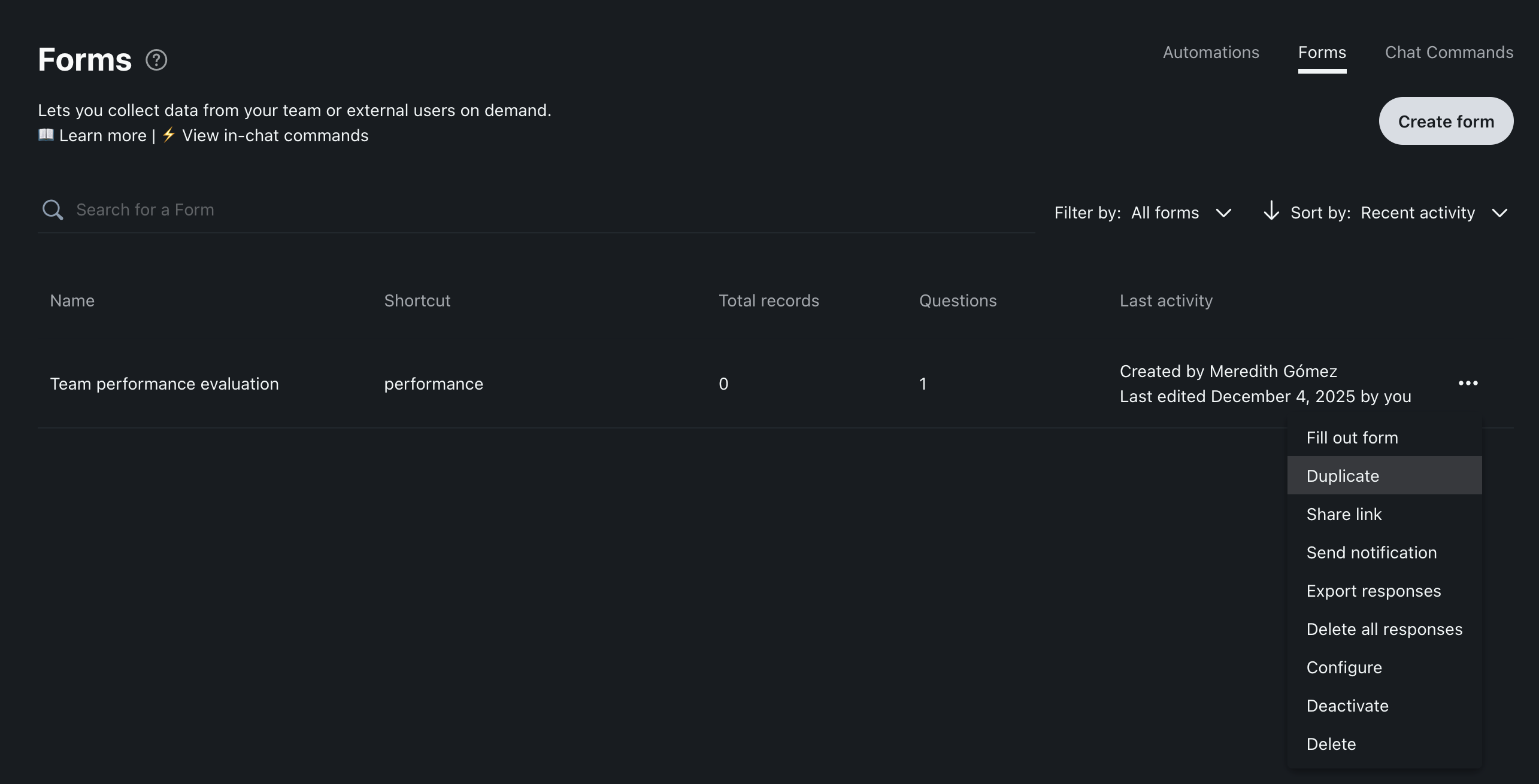
Go to Automations → Forms
Find the form you want to edit.
Click the ⋯ (three dots) next to the form name.
Select Configure.
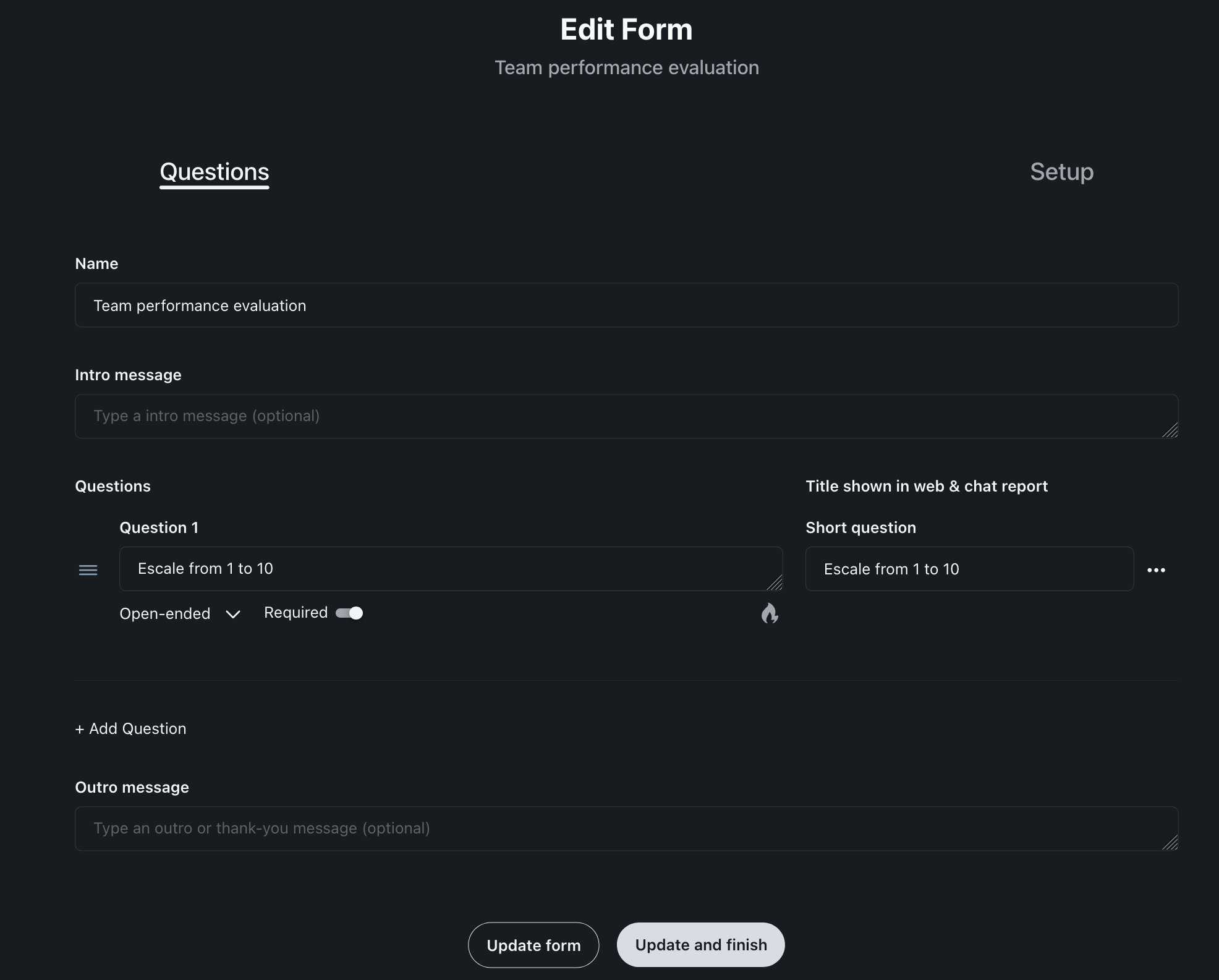
You'll be taken to the form builder, where you can:
Change question text
Add new questions
Remove questions
Reorder questions
Adjust field types (text, multiple choice, etc.)
Update form settings such as name and description
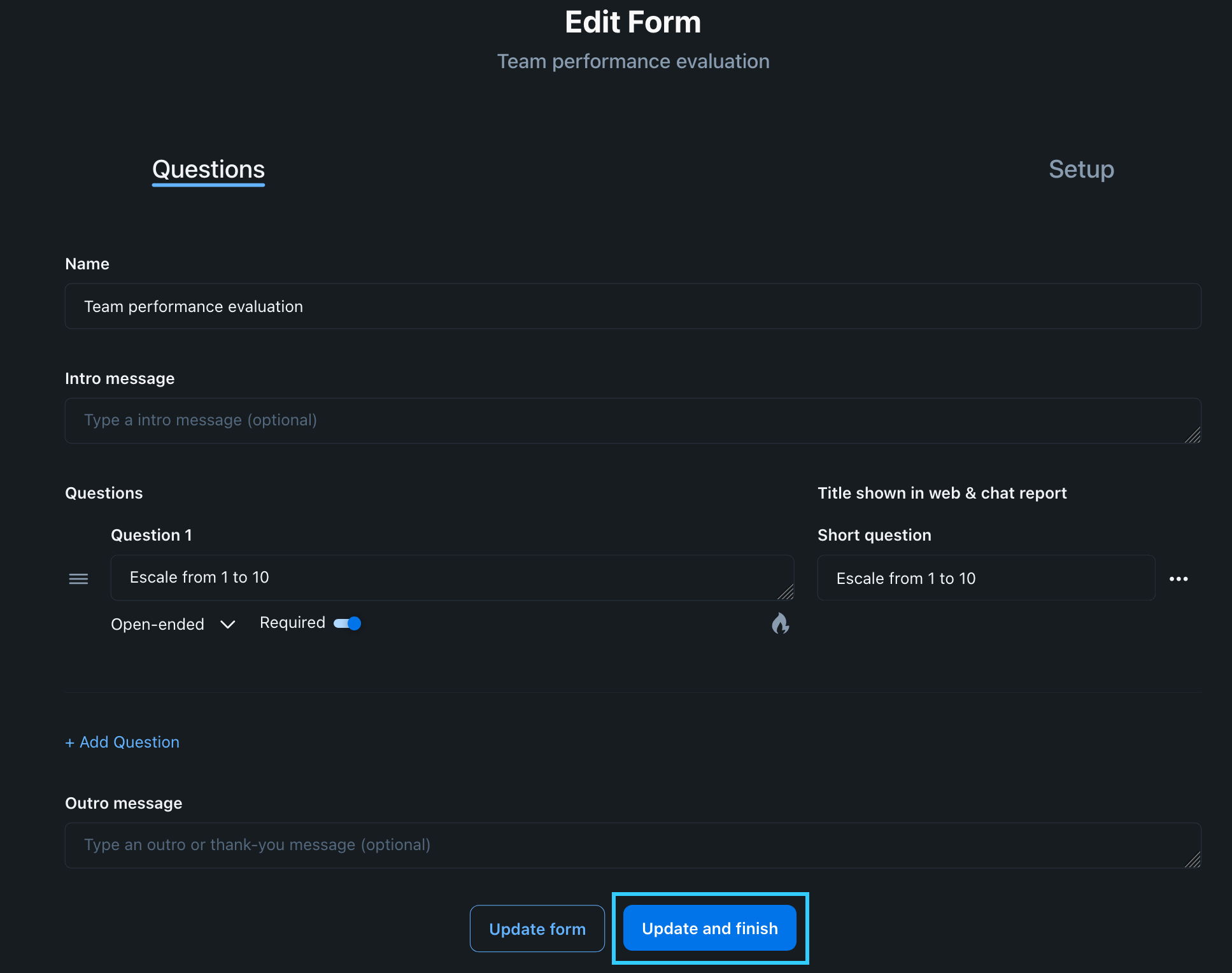
After making changes, click Update and finish.
Editing a form used inside a check-in
If your form is linked to a check-in:
Open Check-ins in the sidebar.
Select the check-in that uses the form.
Go to the Questions tab.
Click Edit Form.
Any updates you make will apply the next time the check-in runs.
Note: Updating the form will not change previously collected check-in responses.
Editing a form used inside an automation
If your form is used in an automation:
Go to Automations → Automations list
Open the automation that references the form.
Look for the Insert form or Form submission trigger step.
Click Edit form.
After saving changes, check your automation workflow to ensure everything still works as expected.
What happens to existing form responses?
Past responses remain saved in Forms → Responses.
New responses will follow the updated structure.
If you removed a question, old answers to that question will remain visible in the response history.
When to consider creating a new form instead
If you need to make major changes—such as completely different fields or a new structure—you may prefer creating a new form to avoid mixing different types of submissions in one dataset.
Need help?
If you're unsure how your changes may affect existing workflows, feel free to contact us at support@dailybot.com
and our team will gladly review your setup.