
What are team values and how can I use them?
Keep in mind that to use this feature your organization requires a Advanced plan. If you're logged in, you can upgrade here and start using team values today.
Team values (a.k.a. Company values) are the spiritual north of your team/organization. They provide a clear path of improvement for everyone so we made it easy for you to combine them with kudos and track how your team evolves based on the direct feedback gathered from kudos.
Add new team values
To set up your team values, go to Kudos > Team Values and select Add a team value.
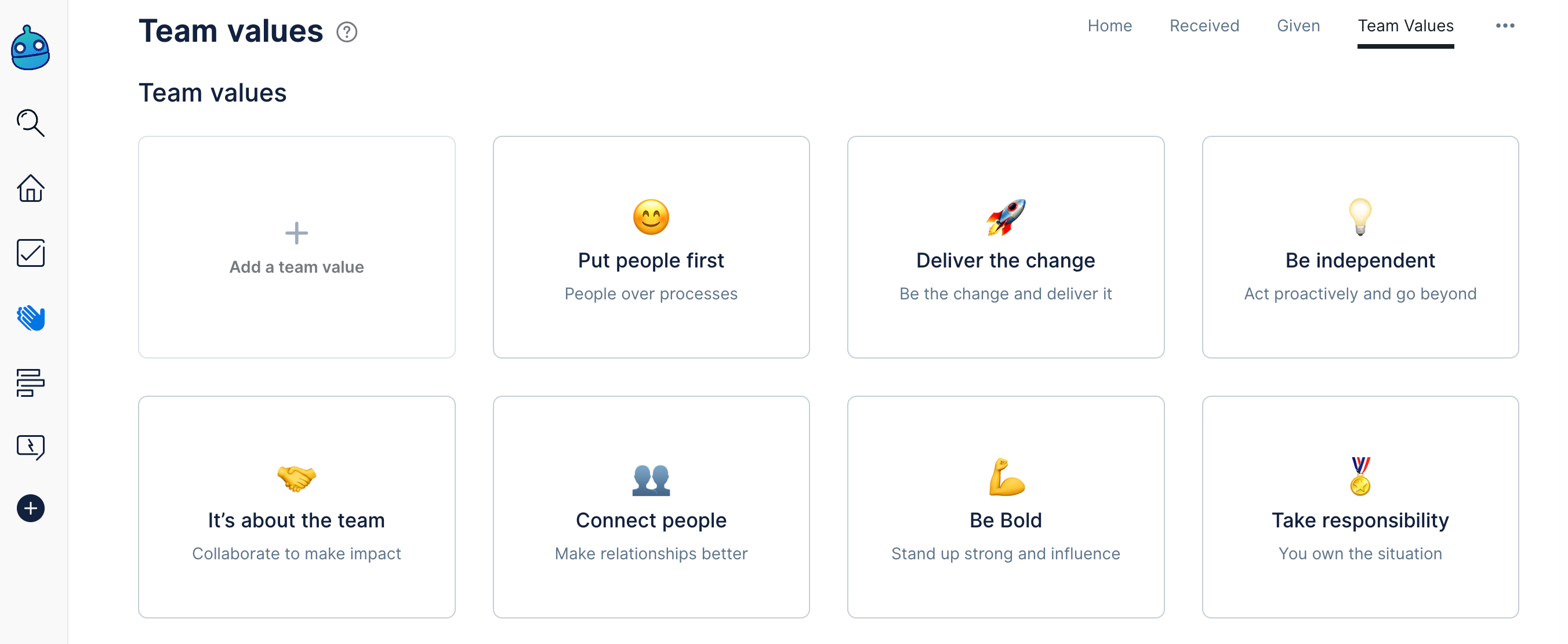
After that, you’ll need to put a name for the new team value, add a short description and select an emoji for it (if wanted). Finally, just click Save and continue.
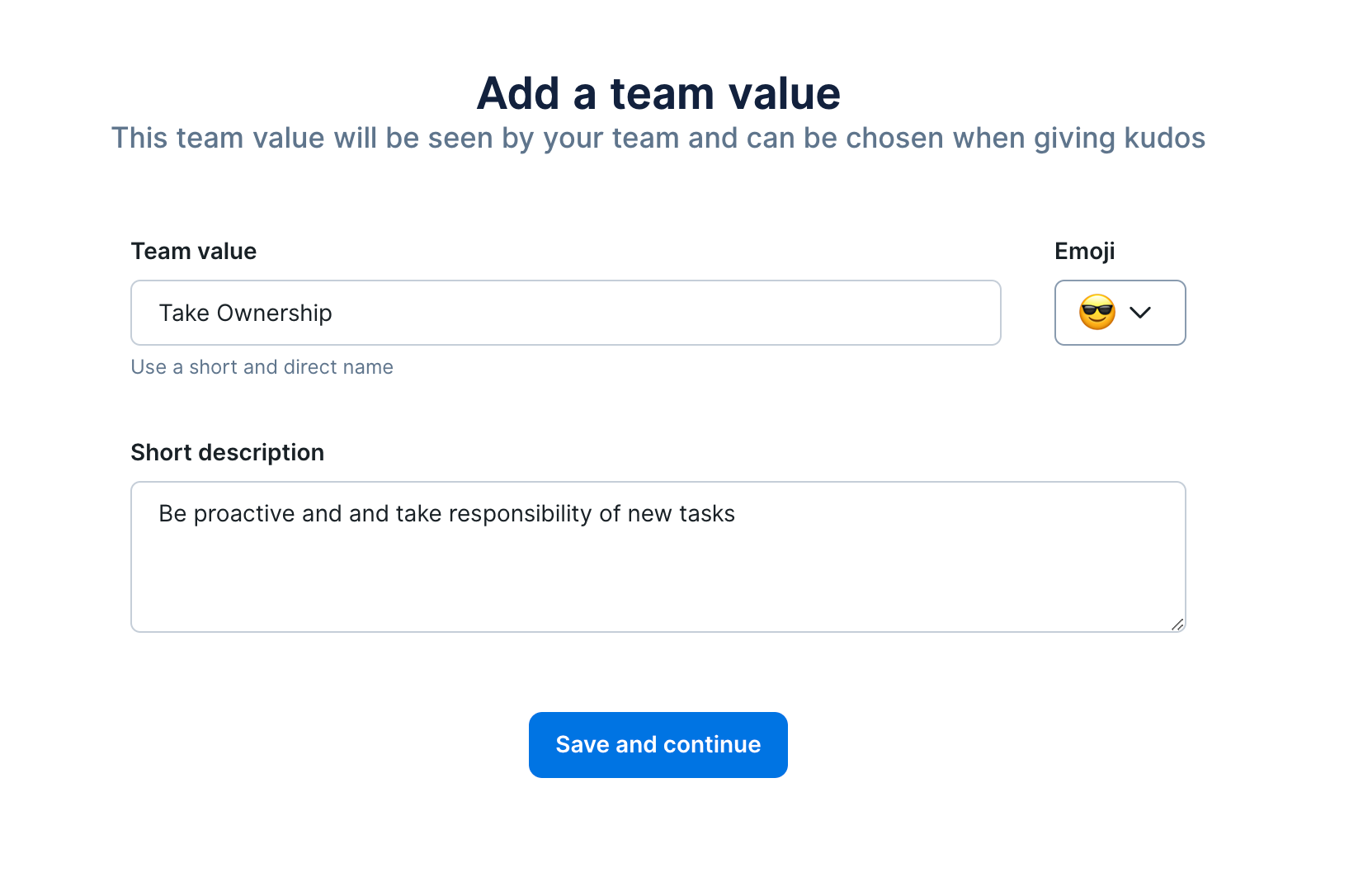
It’s all done! You can click on Finish or Add another one as you need. Now that is created you’ll be able to select this team value while giving kudos to your team (from the chat or web).

Use your team value when giving kudos
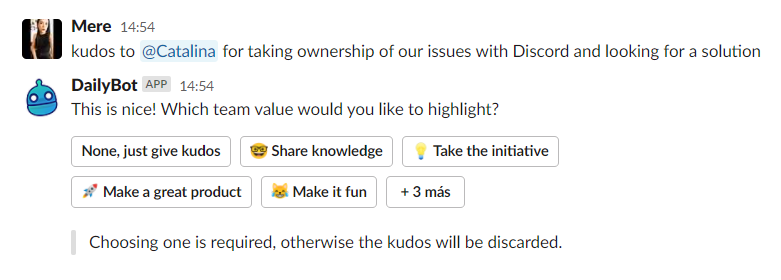
To use your newly created team values, simply go to the chat (or the web app) and give kudos like you used to:
kudos to Person for helping the team¡
DailyBot will now automatically ask you if you want to attach said kudos to a specific team value before they're sent to their recipient.
How can I edit or remove team values?
To edit existing team values go to Kudos > Team Values and click the 3 dots and select Edit.
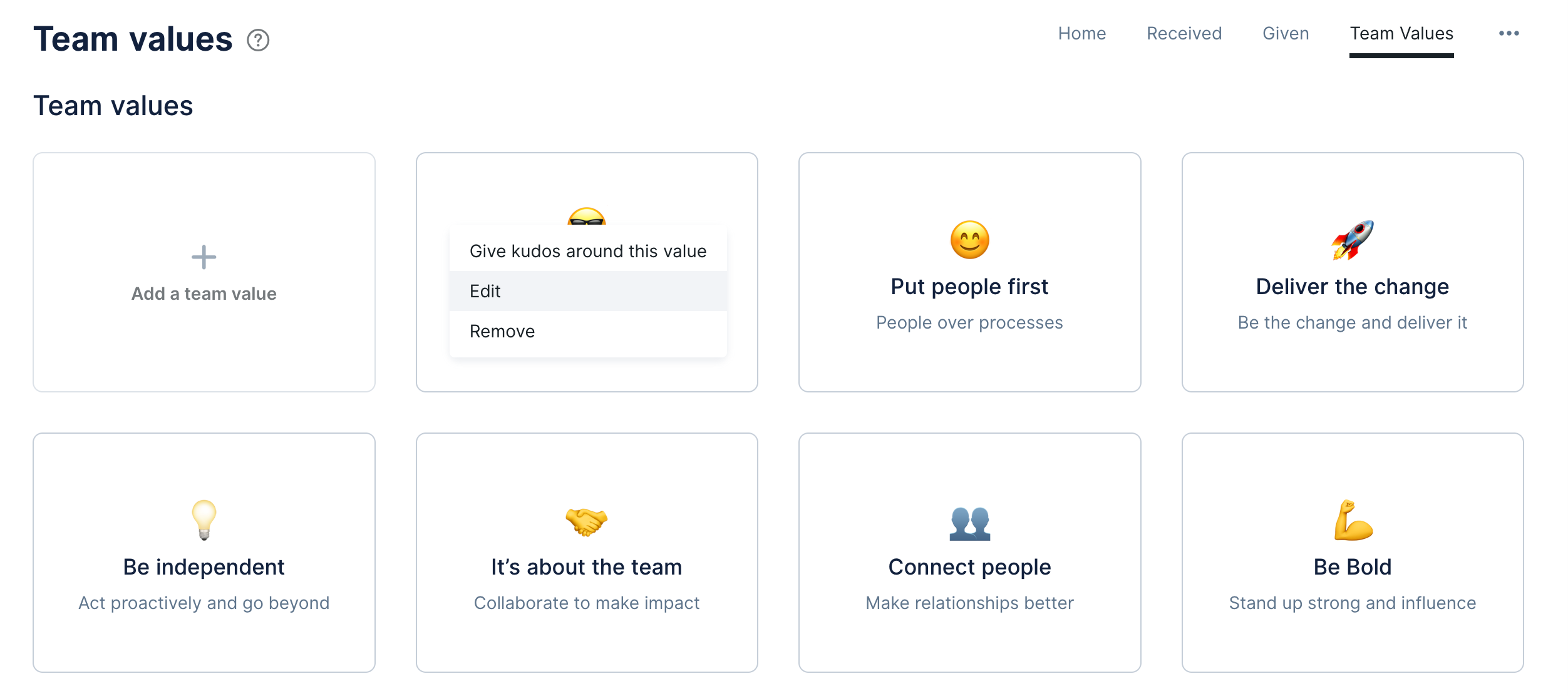
You can change the team value name, write a new description, change its emoji, and once the updates are ready, click Save.
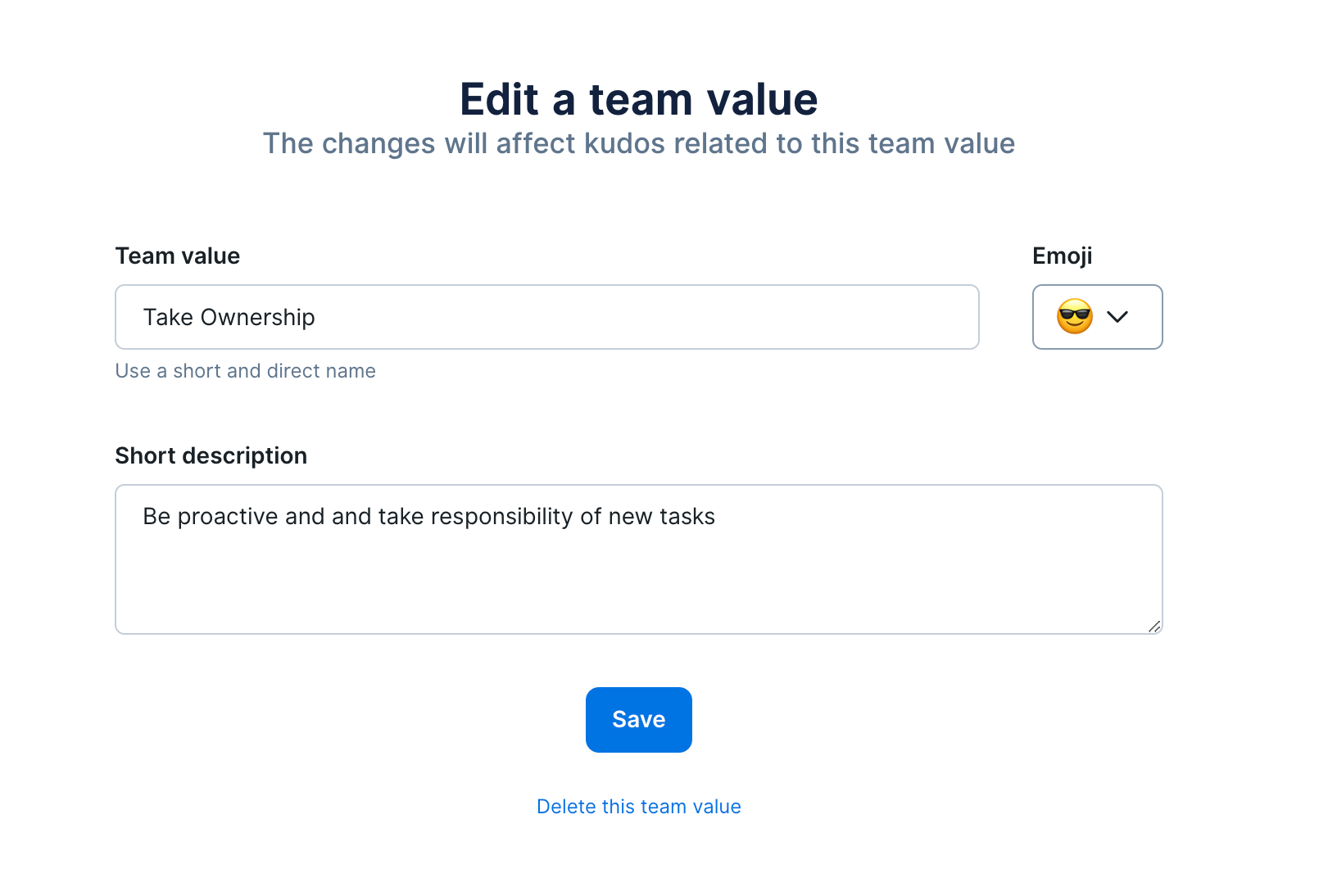
If you’d like to remove this team value while editing, click on the option Delete this team value.
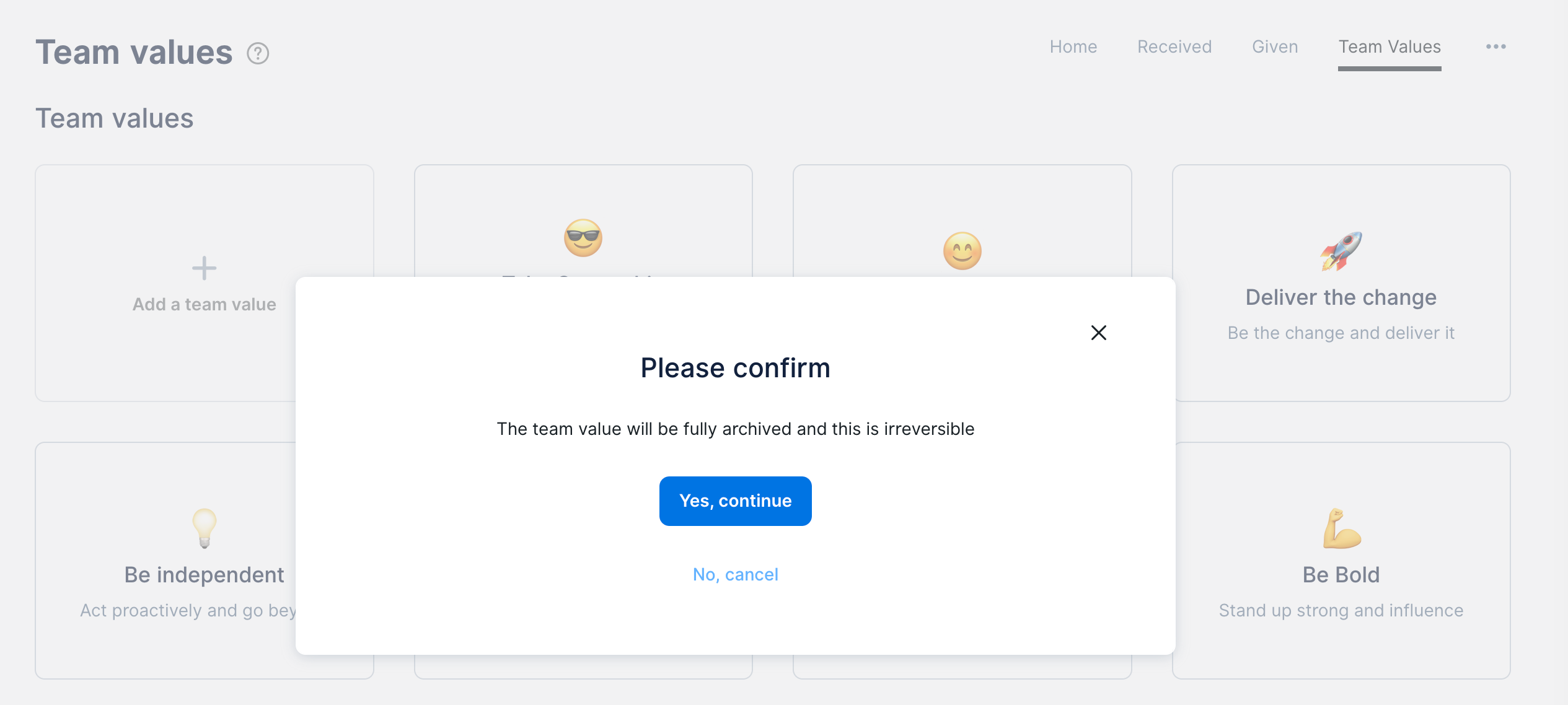
Another way to remove your team values is going to Kudos > Team Values. Click the 3 dots and select Delete. A popup will appear to confirm your choice, if you’re sure, continue and click Yes, continue.
How can I check Kudos metrics?
On the sidebar menu, select Kudos. You’ll notice the Kudos homepage has a leaderboard that shows the people that have received (and given!) kudos to the team.
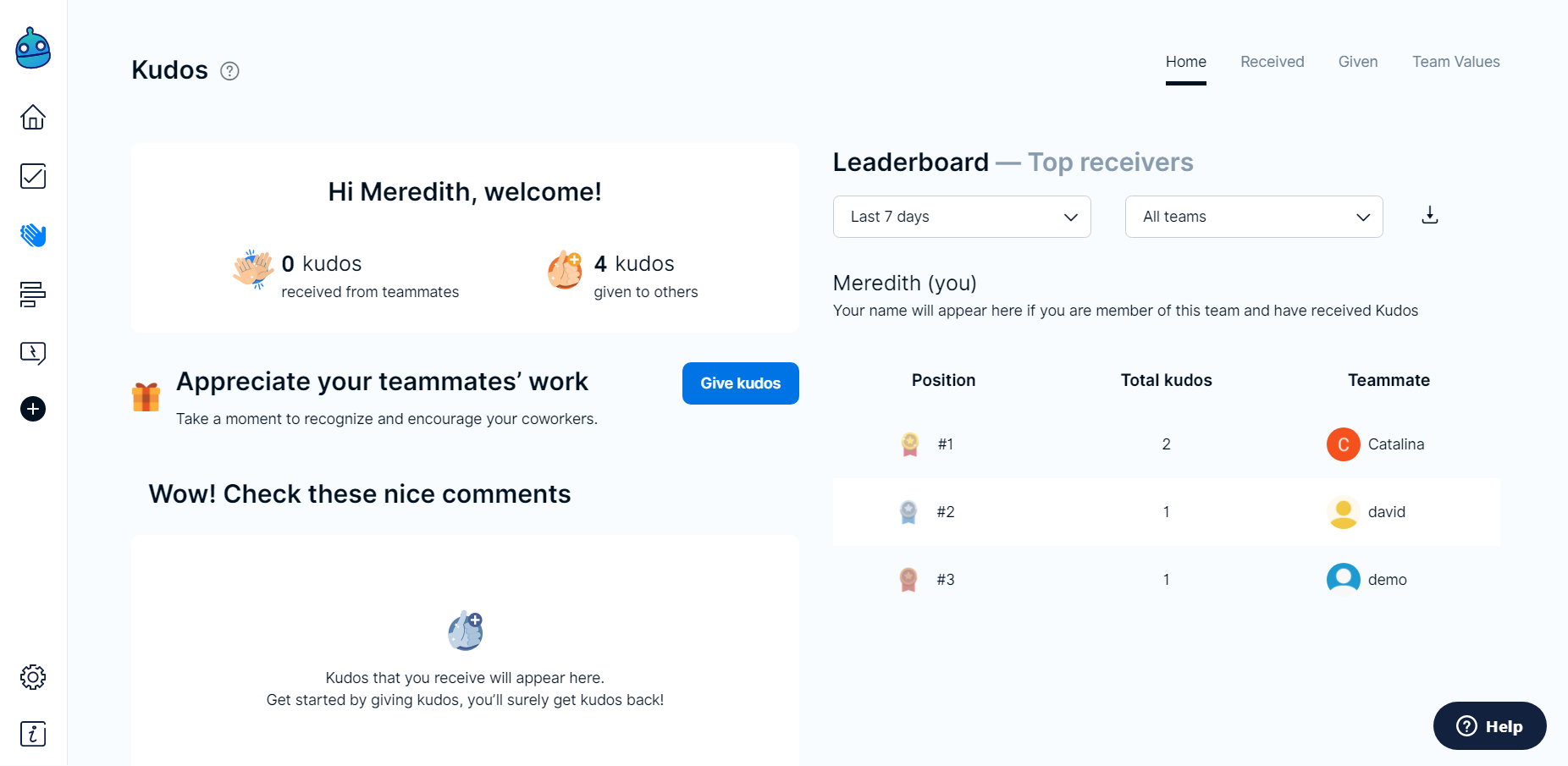
It's also possible to select the period from which you’d like to see kudos history and choose
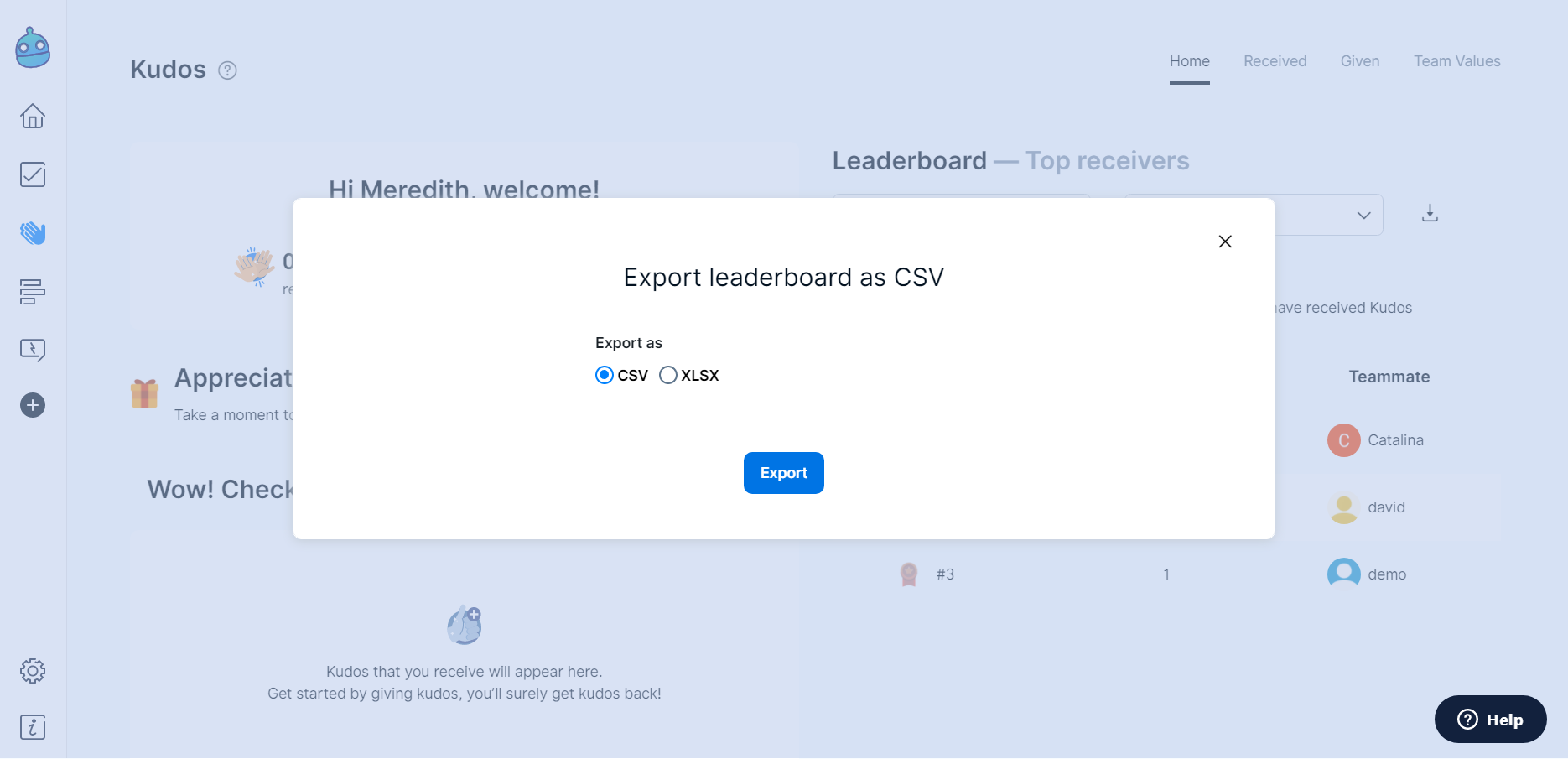
any particular team that you’d like to review. And if you’d like to save that info, just click the
download button to export leaderboard CSV or XLSX.
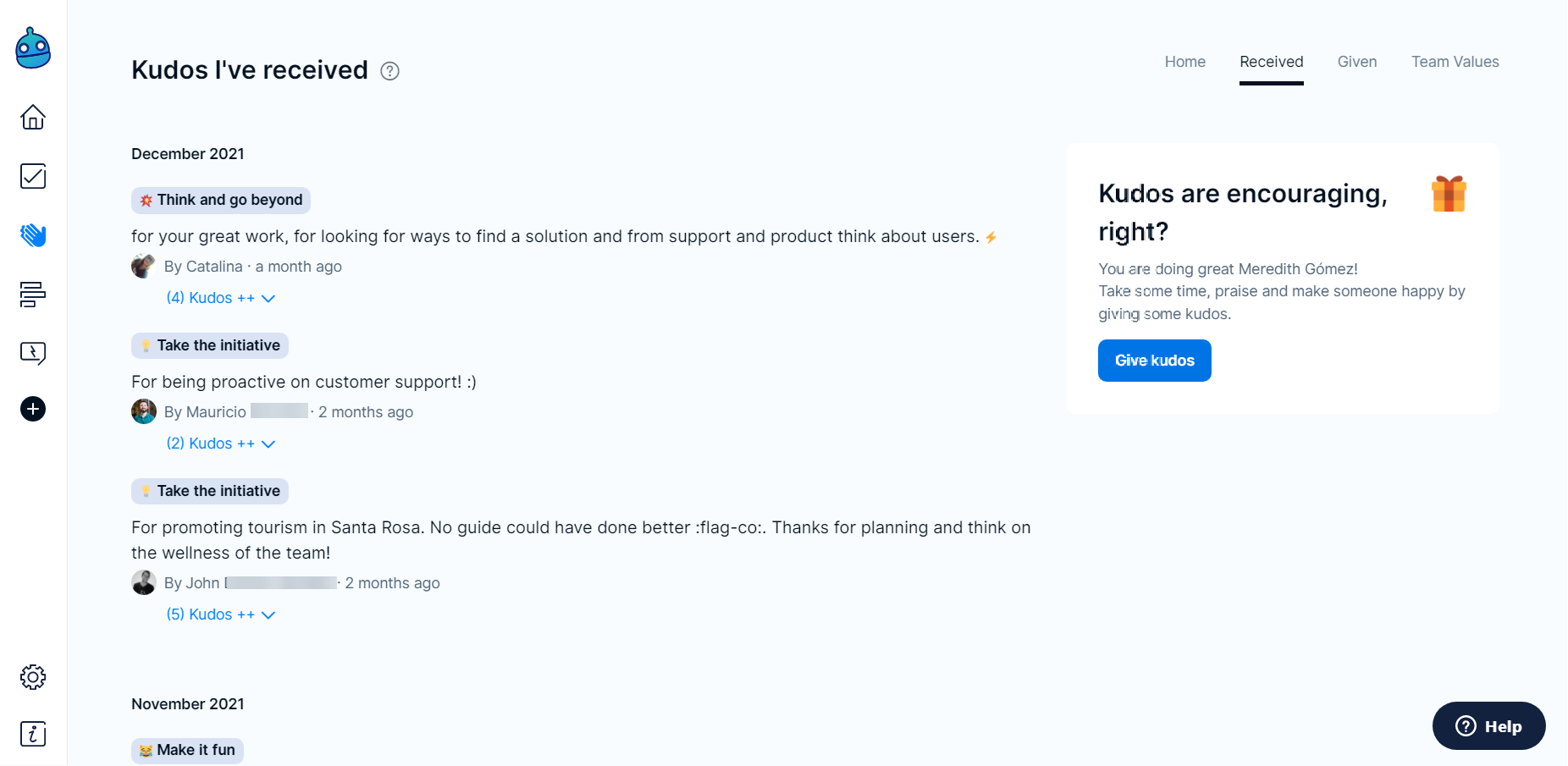
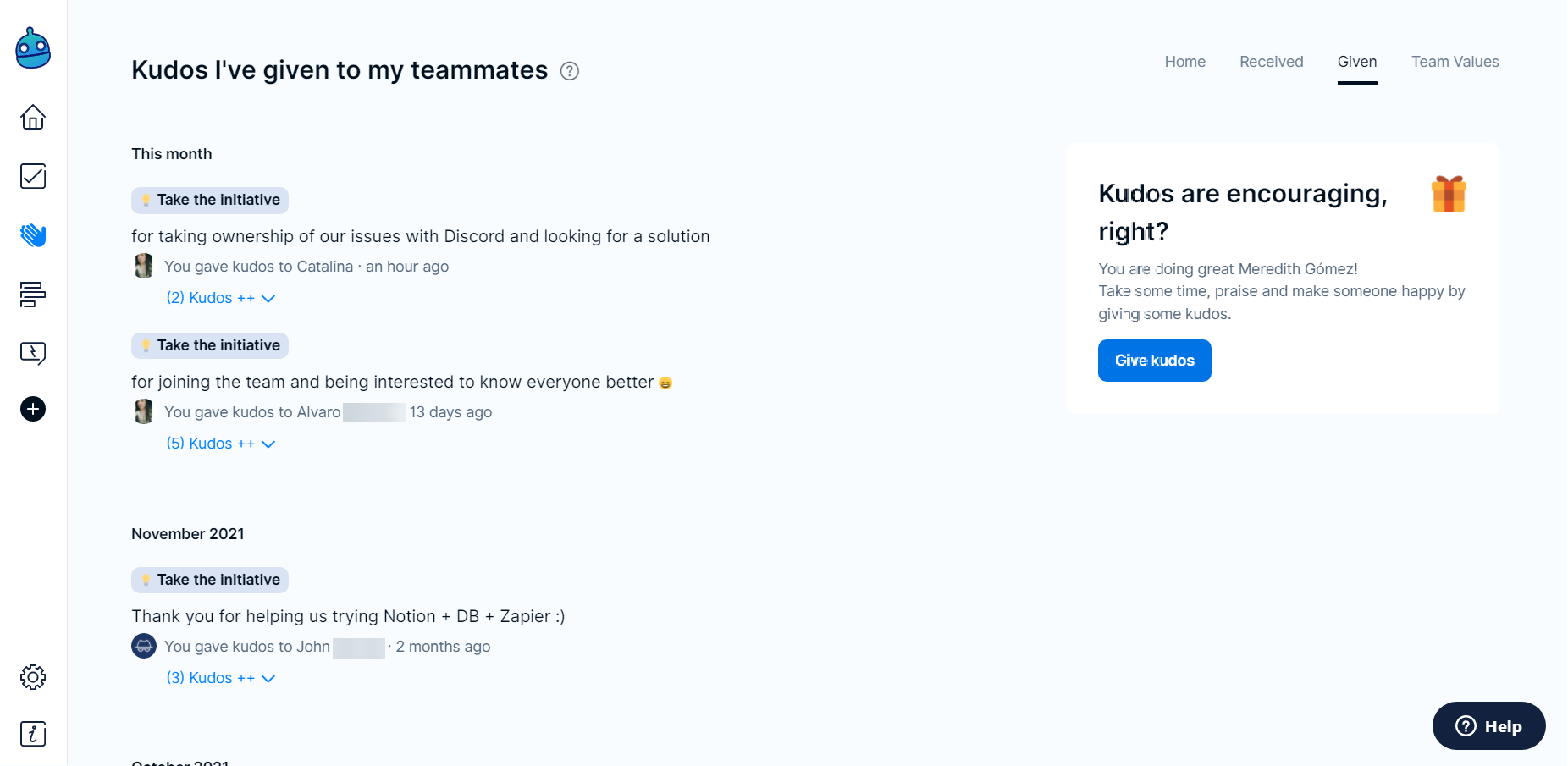
One last thing, remember that you can also review the page Received or Given to see a
summary of the kudos you’ve specifically got from your team and the kudos you’ve sent to others!
That is it! You can also refer to this video:
Any questions? Submit a request here.